User Guide
Everything you need to install, configure, and use T2G DOM at full capacity — from first launch to live execution and signal reading.
Overview
T2G DOM extends Bookmap with a live, structured order flow panel that provides MBO-powered order tracking, iceberg detection, stop cascade signals, and a full execution interface — all in a single compact panel that sits alongside your chart.
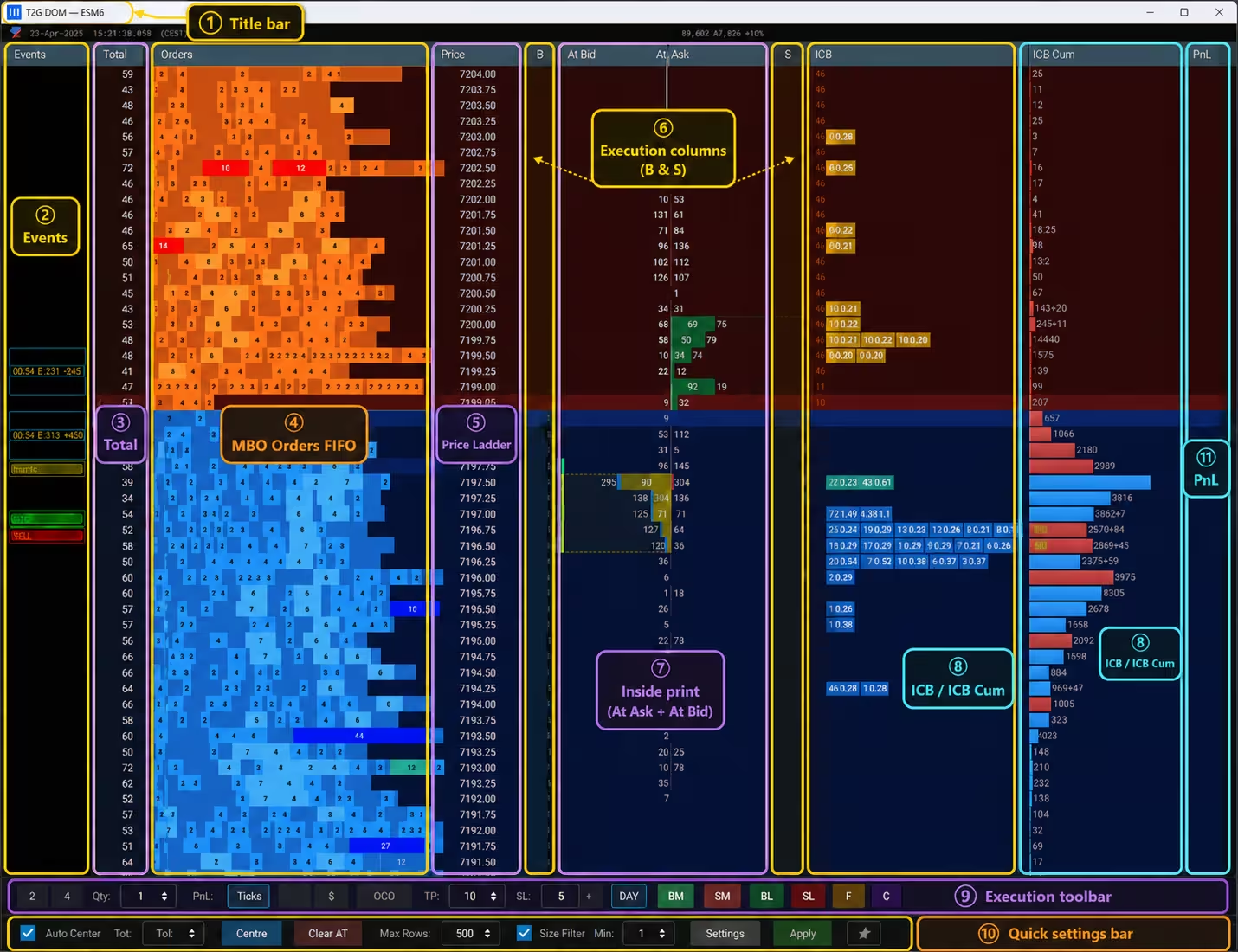
addon-overview.avif in /public/images/ Interface Areas
Instrument header showing the addon logo, instrument name, and Bookmap market time. It also displays the real-time total pending orders at the bid and ask, along with the current delta. The time stays synced with live or replay time.
Real-time event markers column. Displays signals such as OOS, SRC, CRC, DSWEEP, and other detected structures at their relevant price levels.
Cumulative resting size visible at each price level. Helps assess where liquidity is concentrated in the order book.
FIFO queue depth at each price level. Shows how many orders are sitting ahead in the queue, based on MBO data.
Central price column showing the traded and non-traded levels. This is the main reference axis of the DOM.
Execution-related columns. B and S show buy and sell working orders or positions, while PnL displays running profit and loss by level when execution is enabled.
Aggressive traded volume per level. At Bid shows sellers hitting the bid, and At Ask shows buyers lifting the ask.
Iceberg analysis columns. ICB highlights per-level iceberg activity, while ICB Cumul shows the cumulative iceberg pressure.
Trading control bar with action buttons such as BM, SM, BL, SL, F, and C, plus quantity, PnL mode, OCO, TP, SL, and TIF settings.
Bottom utility bar for quick controls such as auto-centering, center/clear actions, max rows, size filter, settings access, and apply.
Installation
The T2G DOM add-on is distributed as a .jar file and installed directly through Bookmap's built-in Add-on Manager. The process takes under two minutes and requires no external installer.
Requirements
- Bookmap Version 7.4 or later with an active Global subscription.
- License key A valid T2G DOM license key delivered by email after purchase.
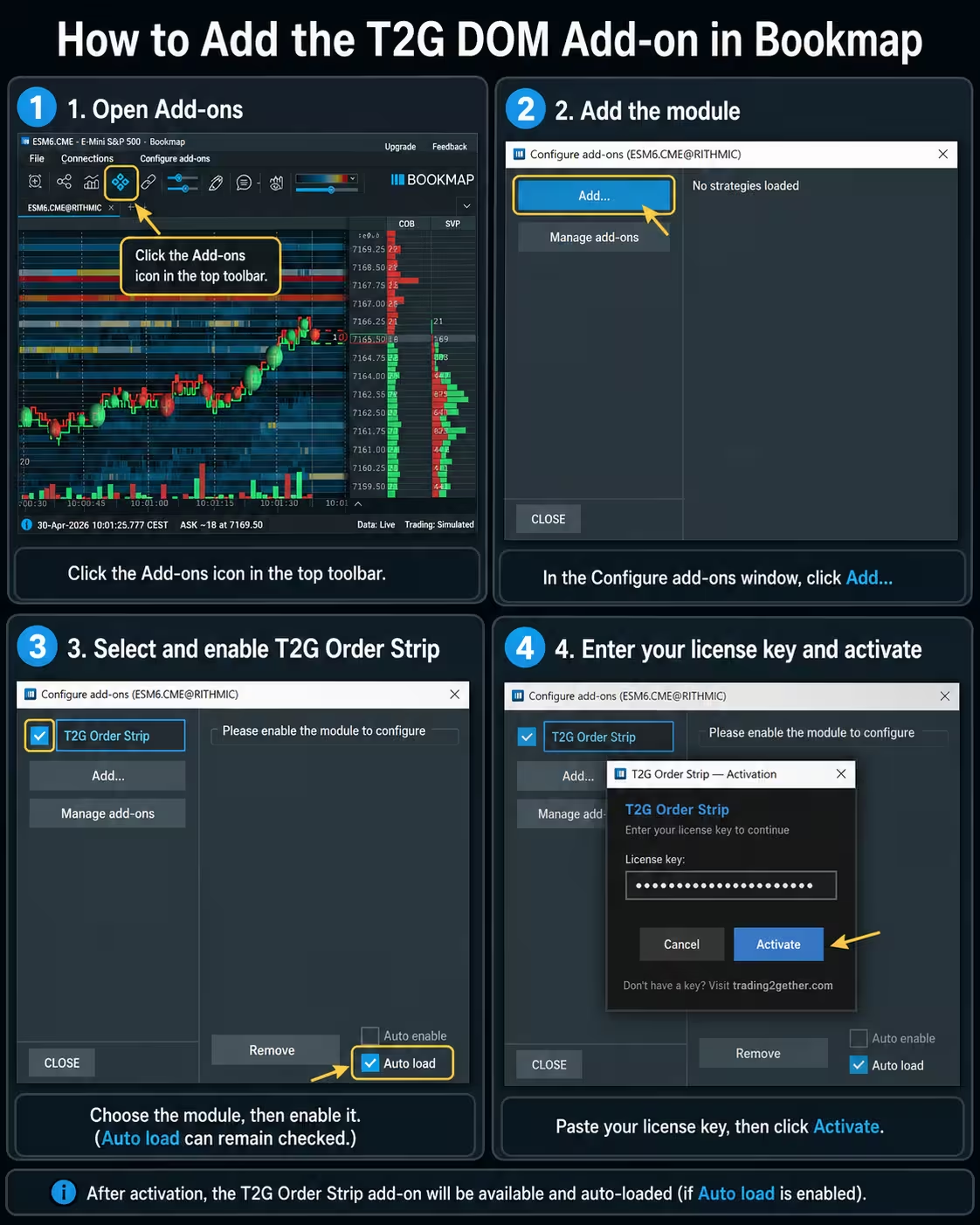
In Bookmap, click Add-ons in the top menu bar, then select Configure add-ons…
In the Add-on Manager window, click Add module and locate the t2g-dom-latest.jar file you downloaded from your member area.
Find T2G Order Strip in the add-on list and toggle it to enabled. Accept a Bookmap restart if prompted.
After restart, open the add-on from Add-ons → T2G DOM. In the activation dialog, enter the license key from your purchase email and click Activate.
Important notes
| Bookmap version | Must be 7.4 or later. Older builds are not supported. |
| Bookmap plan | Requires a Global subscription — the add-on API is unavailable on lower tiers. |
| License key | Keep your key confidential. It is tied to your account and may not be shared. |
| Auto-load | Once activated, the add-on loads automatically on every Bookmap start. No need to re-enter the key. |
Troubleshooting
Add-on doesn't appear after installation
Confirm the .jar was loaded via Add-ons → Configure add-ons → Add module and that the toggle next to T2G Order Strip is enabled. If it still doesn't show up, restart Bookmap.
Activation doesn't work
Double-check that the license key is entered exactly as delivered — uppercase, hyphens included. If the issue persists, contact licenses@trading2gether.com with your order details.
Requirements
Before using T2G DOM, make sure your Bookmap environment, license, data connection, and hardware setup are ready. T2G DOM runs inside Bookmap, so the main technical requirements come from Bookmap itself — especially when using MBO / full-depth data.
Important clarification
T2G DOM does not replace Bookmap and does not run as a standalone platform. It runs inside Bookmap. Hardware requirements are mainly driven by Bookmap, the market data feed, MBO / full-depth data, market volatility, the number of instruments opened at the same time, and any other software running in parallel. For example, opening only ES and MES usually requires fewer resources than running several instruments, multiple monitors, full-depth data, replay, browser tabs, and other trading tools at the same time.
T2G DOM is compatible with Bookmap 7.4 or later. If you are using an older Bookmap version, update Bookmap before installing or activating the add-on.
Bookmap Global is enough to load and use T2G DOM in analysis mode. Bookmap Global+ is required only if you want to execute trades from Bookmap / T2G DOM. Market data is not included — MBO-based features require MBO-capable data from your provider.
T2G DOM is designed around MBO / order-level order-flow reading. The validated setup is Rithmic Level 2 / MBO data. Other providers are not currently validated and remain the trader's responsibility.
You need a valid T2G DOM license key to activate the add-on. The key is sent by email after purchase and is required during activation inside Bookmap.
A stable internet connection is recommended for Bookmap, market data, license activation, download access and future updates.
The T2G DOM module must be added and enabled from the Bookmap Add-ons section before it can be activated and used.
Bookmap system requirements
Because T2G DOM runs inside Bookmap, your computer should meet Bookmap's own system requirements. The heavier your MBO usage, the more resources you should plan for.
- 64-bit Windows 8 or higher
- Minimum 1280×960 effective resolution
- 8 GB RAM
- 10 GB free disk space
- Intel Core i5 or equivalent
- Stable internet connection, minimum 5 Mbit/s
- Windows 10
- 1920×1080 display
- Modern GPU with OpenGL 3.3 support
- 16 GB RAM or more
- SSD for Bookmap data folder, ~100 GB free
- Intel Core i7 / AMD Ryzen 7 or better, 4+ cores
- Stable 50 Mbit/s internet connection
- Windows 10
- 1920×1080 display or higher
- Modern GPU with OpenGL 3.3 support
- 32 GB RAM or more
- SSD for Bookmap data folder, ~100 GB free or more
- Modern Intel Core i9 / AMD Ryzen 9 or better, 8+ cores
- Stable 100 Mbit/s internet connection with low packet loss
- .NET Framework 3.5 or higher
macOS
Bookmap is also available on macOS. Bookmap's minimum macOS requirement is macOS 10.12 or higher with 8 GB RAM. A preferred configuration is around 24 GB RAM. Bookmap provides separate versions for Intel-based Macs and Apple Silicon Macs. For Apple Silicon, GPU acceleration requires macOS 13.0 or higher.
Adapter support may vary on macOS. Rithmic is listed among available Bookmap macOS adapters, while some other adapters may not be supported.
Practical performance guidance
Resource planning
If Bookmap becomes overloaded, market data may lag, the display may become less responsive, and MBO-based readings may lose precision. Plan your hardware according to the number of instruments and the depth of data you actually use.
Requirement summary
| Requirement | Recommendation |
|---|---|
| Bookmap version | 7.4 or later |
| Bookmap plan | Global for analysis mode — Global+ required for trade execution |
| Data | Rithmic Level 2 / MBO validated |
| Windows light use | 16 GB RAM, i7 / Ryzen 7, SSD |
| Windows heavy MBO | 32 GB RAM, i9 / Ryzen 9, SSD, stable 100 Mbit/s |
| macOS | Supported by Bookmap — adapter support may vary |
| License | Valid T2G DOM license key required |
Settings Explained
The settings window opens from the gear icon in the bottom control bar, or via a right-click on the panel header. The General tab is the primary configuration surface — display depth, column visibility, alerts, and trade execution are all set here.
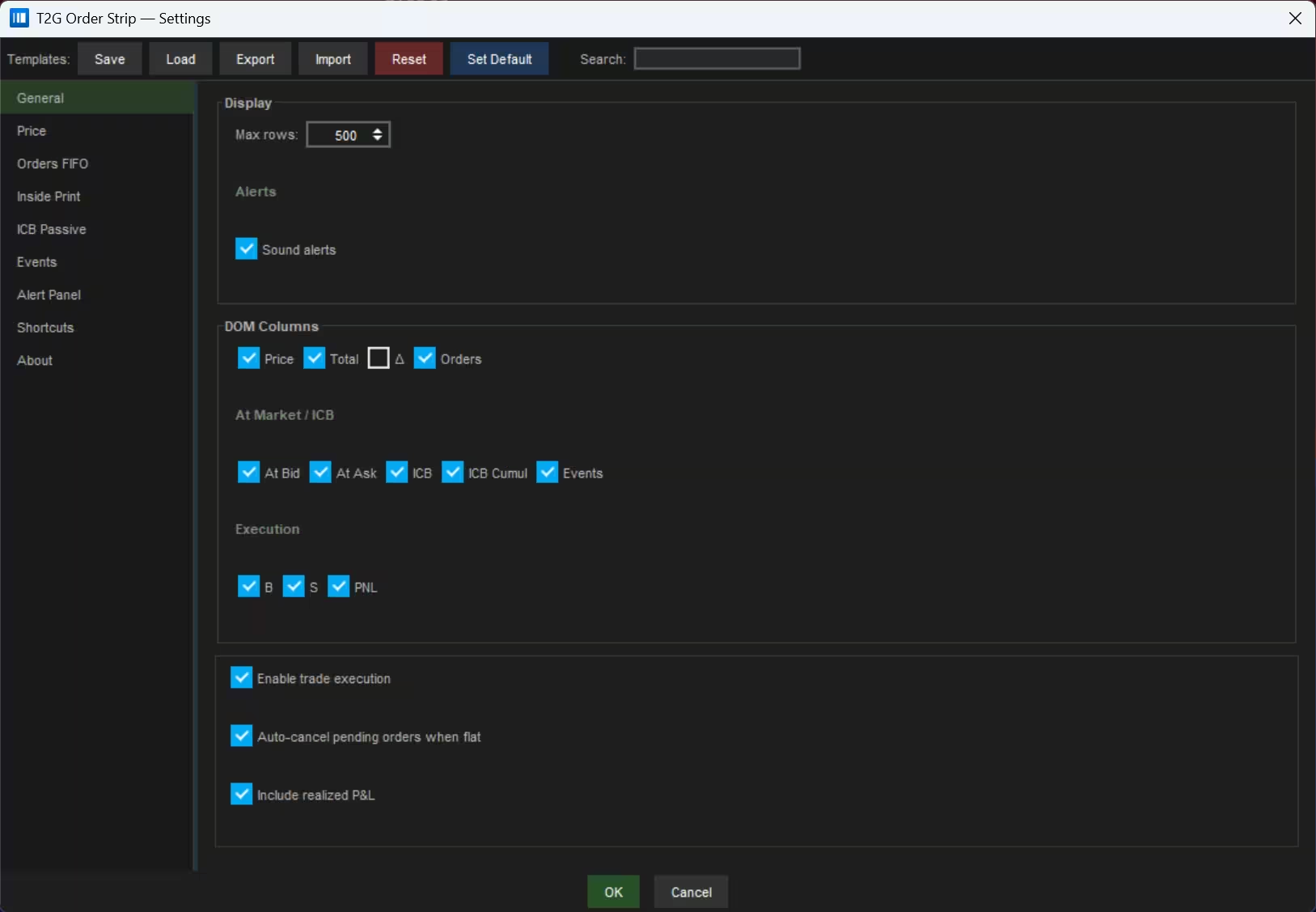
General
Sets the number of price levels displayed on each side of the DOM.
This value defines the visible market depth: a setting of 500 displays up to 500 Bid and 500 Ask levels simultaneously in the interface.
Higher values reveal deeper liquidity zones farther from the price. Lower values reduce visual load and keep focus around the spread.
Globally enables or disables all sound alerts from the add-on.
This checkbox acts as a master switch: unchecking it silences all sounds generated by T2G DOM (Stop Cascade, Sweep, ICB, etc.) in a single action, without having to disable each alert individually in its own settings.
Particularly useful when you need temporary silence — a meeting, a reflection period — while keeping your alert configurations intact to re-enable them later.
Controls which columns are shown in the DOM grid. Columns are grouped into three categories.
Base columns
DOM price levels
Cumulative volume displayed per side
Order book change per level (unchecked by default)
Your active orders at each level
At Market / ICB
Volume executed at the Bid (aggressive sell trades)
Volume executed at the Ask (aggressive buy trades)
Inside Competitive Block — passive block detected per level
Cumulative ICB per level for the session
T2G event indicator at this level (Sweep, Stop Cascade…)
Execution
Buy button at the corresponding price level
Sell button at the corresponding price level
Profit & Loss displayed per price level
Enables the ability to place orders directly from the T2G DOM.
When checked, the B/S buttons in the Execution column become functional and allow placing market or limit orders at a price level with a single click.
Unchecking this option puts all execution controls in the DOM interface into read-only mode, without affecting T2G signal monitoring.
Automatically cancels all pending orders when your position becomes flat.
As soon as your net exposure reaches zero, any limit or stop orders still active in the order book are automatically removed. This prevents an unwanted position re-entry after an exit.
Useful in scalping or day trading where managing residual orders is critical after closing a position.
Includes realized P&L in the session's profit/loss display.
When checked, the PNL column shows the sum of unrealized P&L and already realized P&L for the current session. When unchecked, only the unrealized P&L of the open position is shown.
This provides a complete view of session performance without leaving the DOM interface.
Price
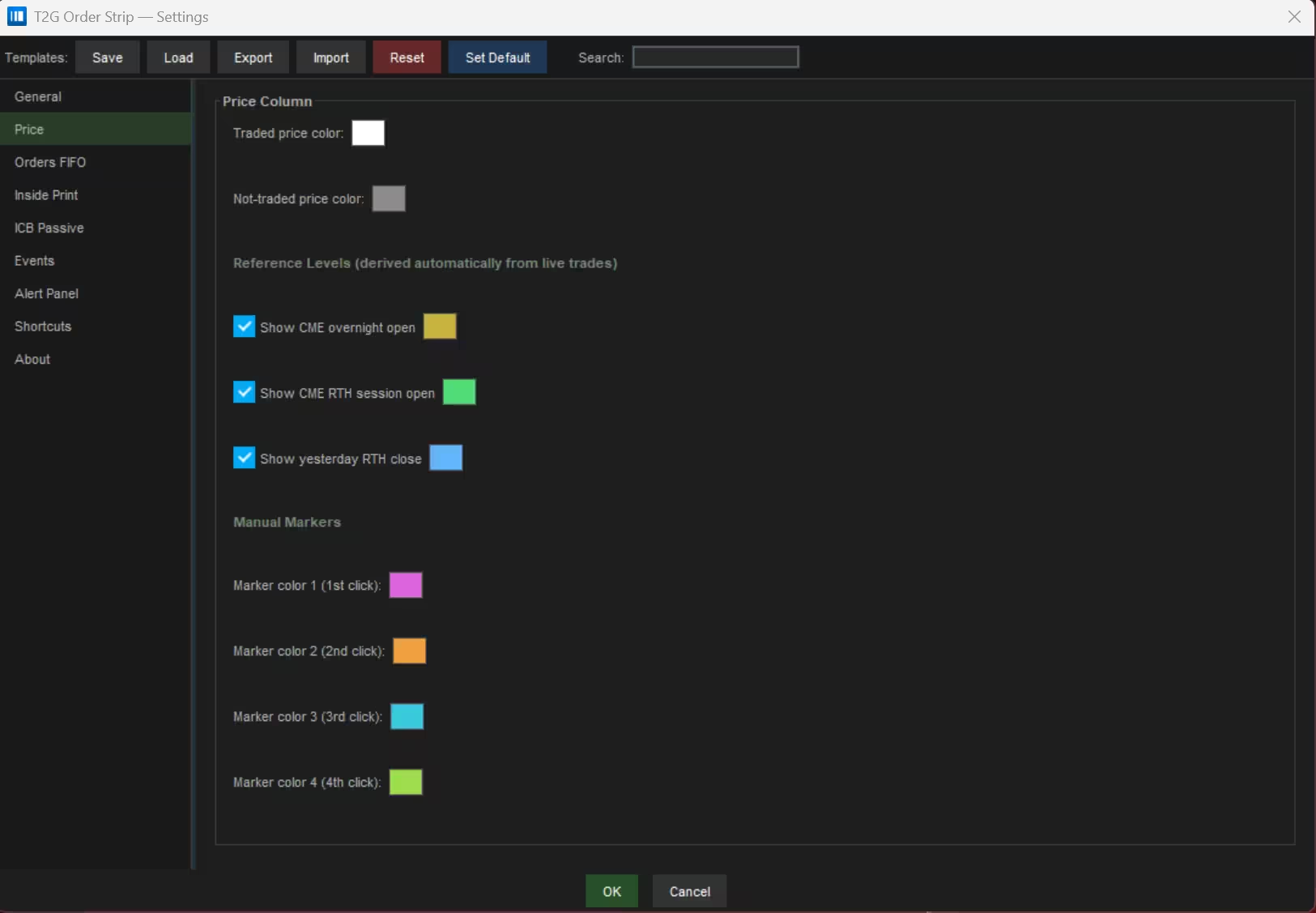
Text color for price levels that traded at least once this session.
A price level is marked as “traded” the first time a tape print occurs at that exact level during the current session. The high-contrast default (white) makes active price zones stand out immediately against the DOM background.
Text color for price levels that have not yet seen a single trade this session.
These levels are visually dimmed (default: medium gray) to guide the eye toward areas of proven activity. The contrast between traded and not-traded levels gives an instant read of where the market has actually been.
Three automatic reference markers derived in real time from incoming trade data — no manual input required.
Each level places a small left-edge marker in the price column. A color picker next to each checkbox lets you choose the marker color independently.
Right-clicking on any price in the column cycles through four personal annotation colors. A fifth click clears the marker.
Each of the four color slots is independently configurable. Use them to flag levels of interest — support/resistance, targets, alerts — directly in the DOM.
Orders FIFO
Color filters for large passive orders, moved-order palettes, histogram typography, and moved order tracking controls.
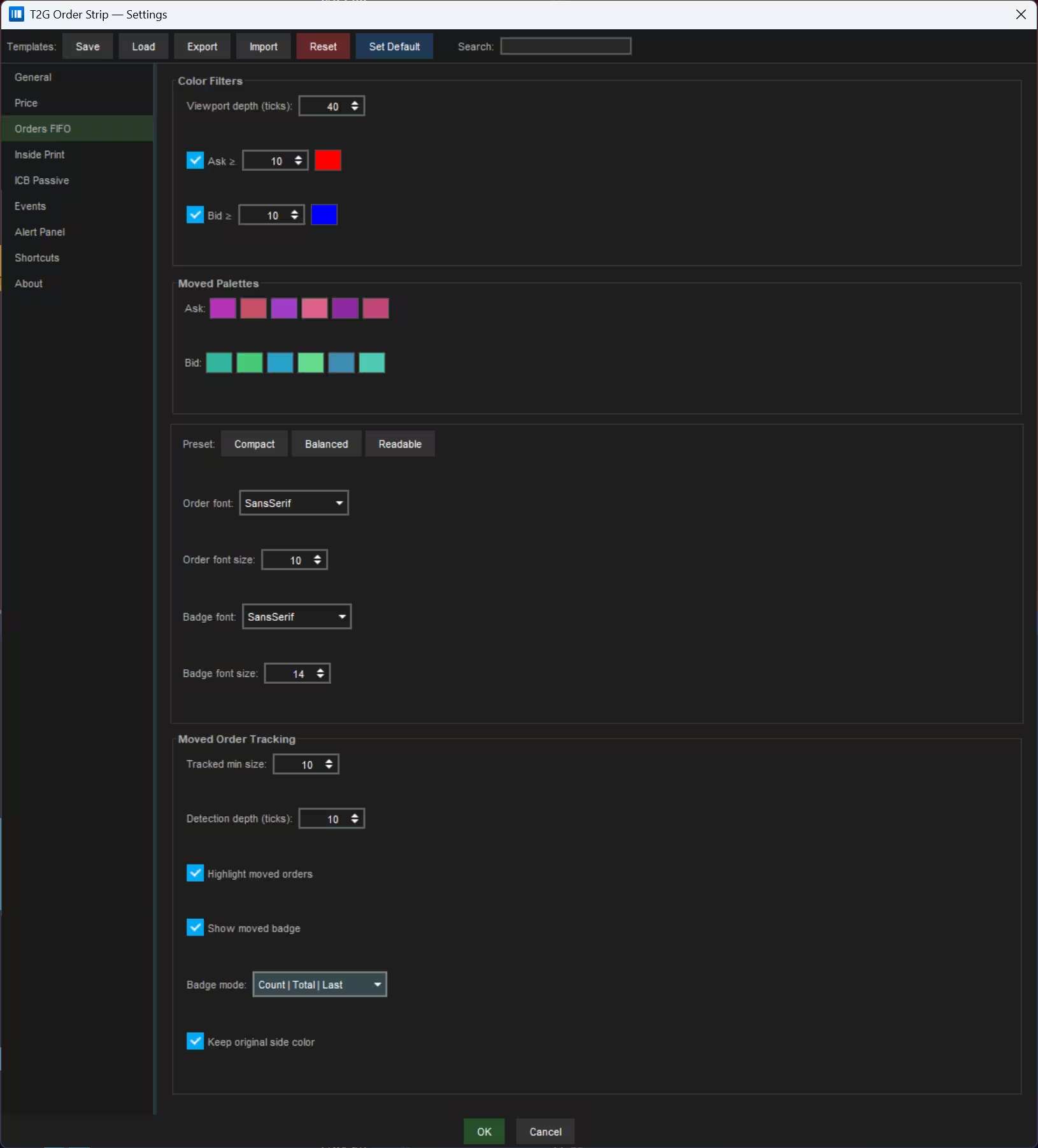
Large passive order highlighting
Stable color assignment for tracked orders
When an order is detected as "moved," it receives a stable color from one of these palettes — derived from the order ID hash, so the same order always gets the same hue across every move, making it visually trackable through the book.
Histogram typography controls
MOT detection and display controls
Inside Print
Typography presets, trade execution rendering, and event detection settings for sweeps, stop cascades, and iceberg market patterns.
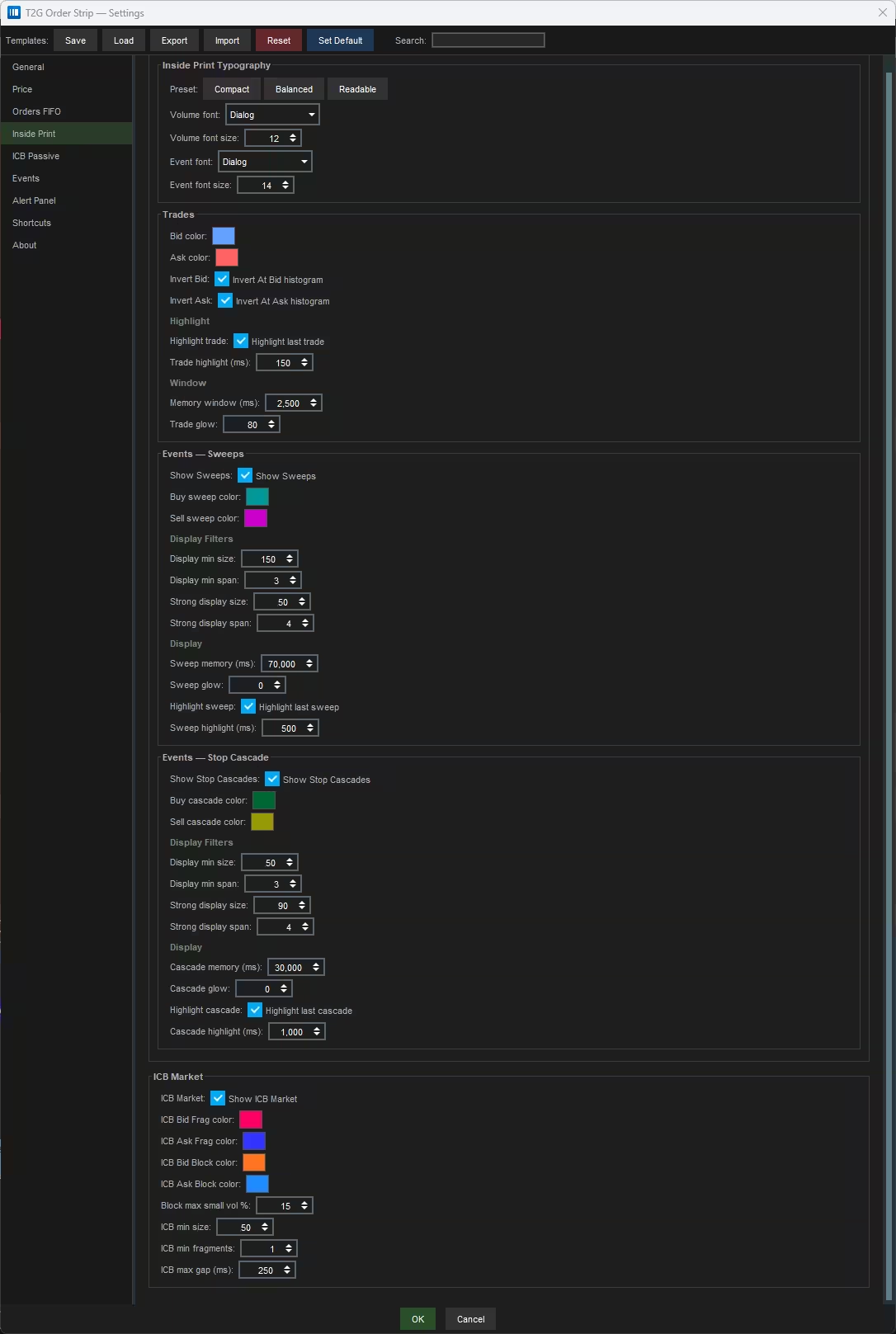
Font & Preset
Execution Rendering
Sweep Detection & Display
Aggressive executions crossing multiple price levels rapidly. Each parameter below controls a distinct aspect of detection or rendering.
Stop Cascade Detection & Display
Rapid directional bursts driven by many distinct small aggressors, consistent with a stop order wave. Same parameter structure as Sweeps.
Iceberg Market Pattern Detection
Detects repeated aggressive fills at the same price level suggesting a hidden iceberg executing at market. The pattern is confirmed when size, fragment count, and timing constraints are all met.
ICB Passive
Detection and display of passive iceberg orders resting in the book, plus cumulative absorption tracking over a rolling time window.
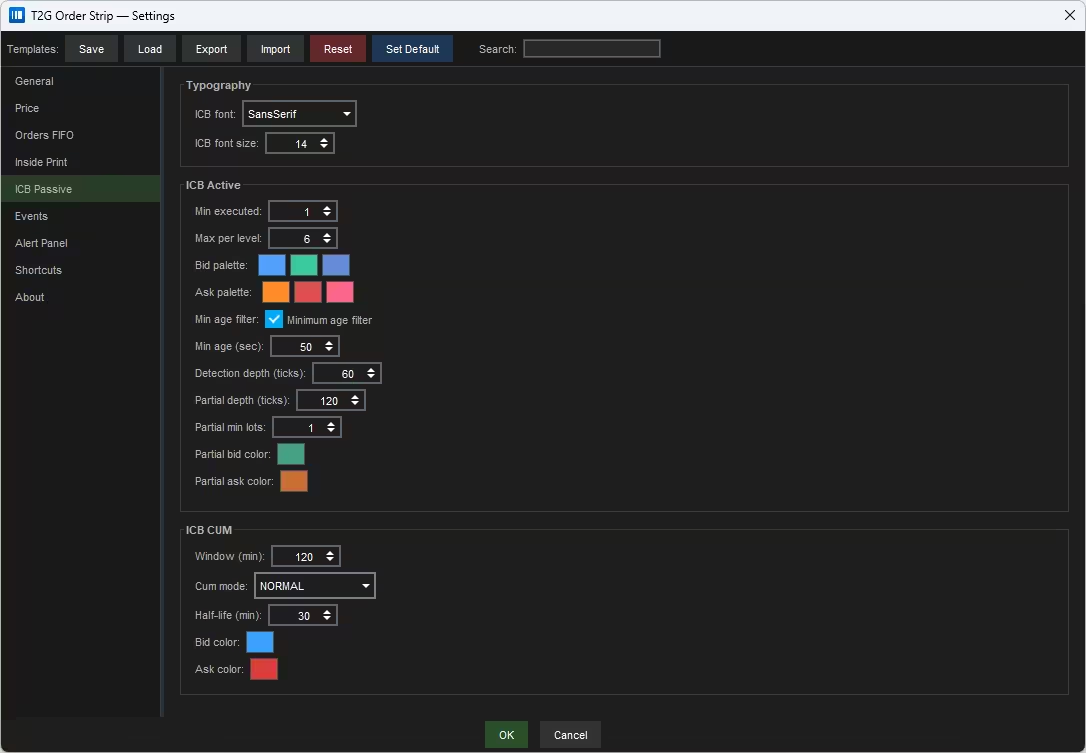
ICB Label Font
Passive Order Detection & Display
Controls which passive orders qualify as ICB, how many are tracked per level, and how partial fills are colored.
Cumulative ICB Absorption
Aggregates iceberg activity over a rolling time window, revealing persistent absorption invisible in the live book because icebergs reload continuously.
Events
Event badge appearance, OOS detection & display, subtype classification, participant analysis, and DSWEEP reference markers.
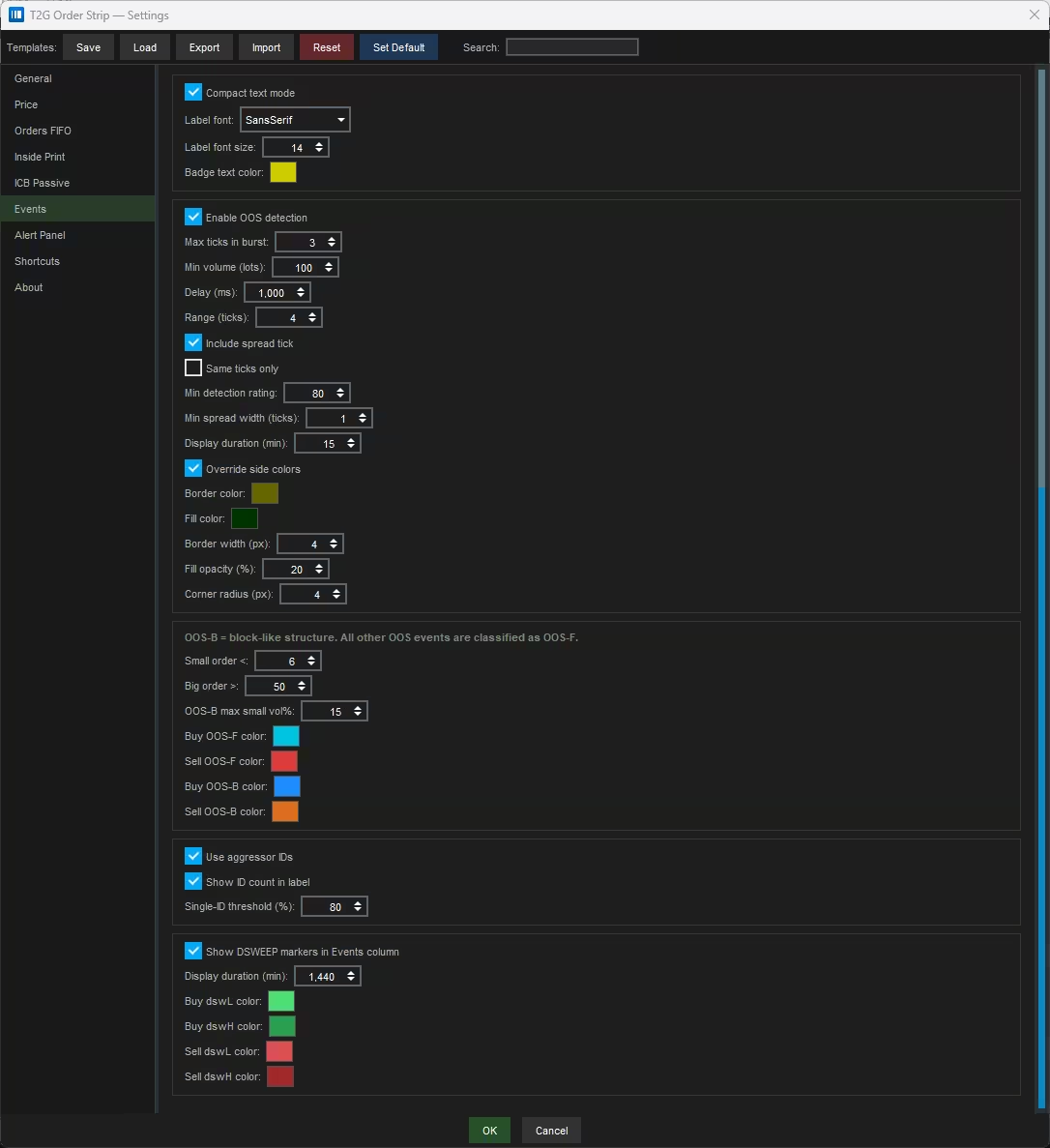
Badge Appearance
Detection & Display
OOS events are detected when aggressive executions occur outside the normal bid/ask spread — signaling directional pressure, stop activity, or aggressive institutional flow. The section is split into detection filters and display settings.
OOS-F vs OOS-B
OOS events are classified into two subtypes based on execution structure. OOS-F (fragmented) = many smaller executions. OOS-B (block) = one or more large executions. Each has its own badge color.
Aggressor ID Analysis
Dual Sweep Reference Levels
DSWEEP markers display key reference levels from detected Dual Sweep events directly in the Events column — remaining visible long after the initial sweep to track reaction zones.
DSWEEP requires both paired instruments to be open
DSWEEP only works when the T2G add-on is opened on both coupled instruments of the supported pair. Opening it on only one instrument is not enough — T2G must receive data from both instruments simultaneously to detect a DSWEEP confirmation.
Supported pairs — current public version
Equity Index Futures
FX Futures
Commodities
Alert Panel
Alert Feed window controls, sound pipeline, and individual detection settings for SRC, CRC, DSWEEP, Sweep Passive Reuse, Sweep, Stop Cascade, ICB, OOS, and DF alerts.
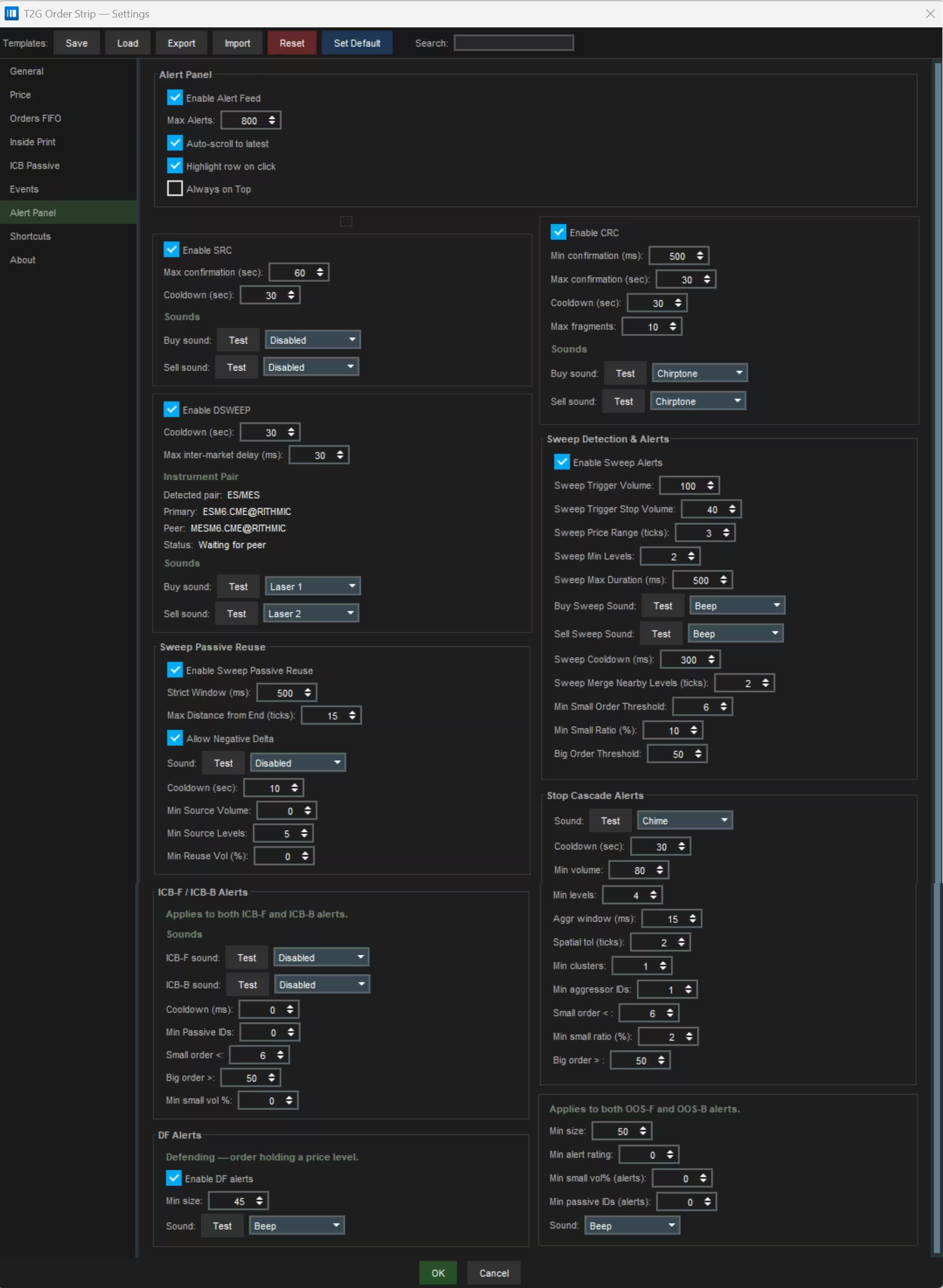
Alert Feed Window
Post-Cascade Reversal
Detects when a stop cascade is followed by a confirmed reversal — price reverses back against trapped traders after a stop run.
Post-Sweep Continuation Signal
Detects when an aggressive sweep is followed by passive liquidity reappearing near the sweep area and price continues in the same direction.
Sweep Alert Pipeline
Controls which sweeps become Alert Feed entries and sound alerts. Separate from the visual sweep display in Inside Print.
Cross-Market Sweep Confirmation
Detects when two correlated instruments (e.g. ES + MES) sweep in the same direction within a tight time window. Requires the add-on running on both instruments.
Stop Cluster Detection
Detects clusters of many small directional executions from multiple aggressor IDs — consistent with retail stops being triggered together.
Post-Sweep Passive Reappearance
Detects when an aggressor ID from a sweep later appears as resting passive liquidity near the sweep endpoint.
Out-of-Spread Alert Filters
Controls alert thresholds for fragmented (OOS-F) and block-like (OOS-B) Out-of-Spread events. Detection parameters are configured in the Events tab.
Iceberg Absorption Alert Filters
ICB-F = fragmented iceberg activity. ICB-B = block-like iceberg activity. Sounds are split by structure type, not direction.
Defended Level Detection
Triggered when the add-on detects liquidity behavior defending a price level across repeated aggressive attempts.
T2G Alert Feed
Real-time event log for all T2G alerts — Sweep, Cascade, ICB, OOS, DF, SRC, CRC and DSWEEP. Designed for sequence reading, not just notification.
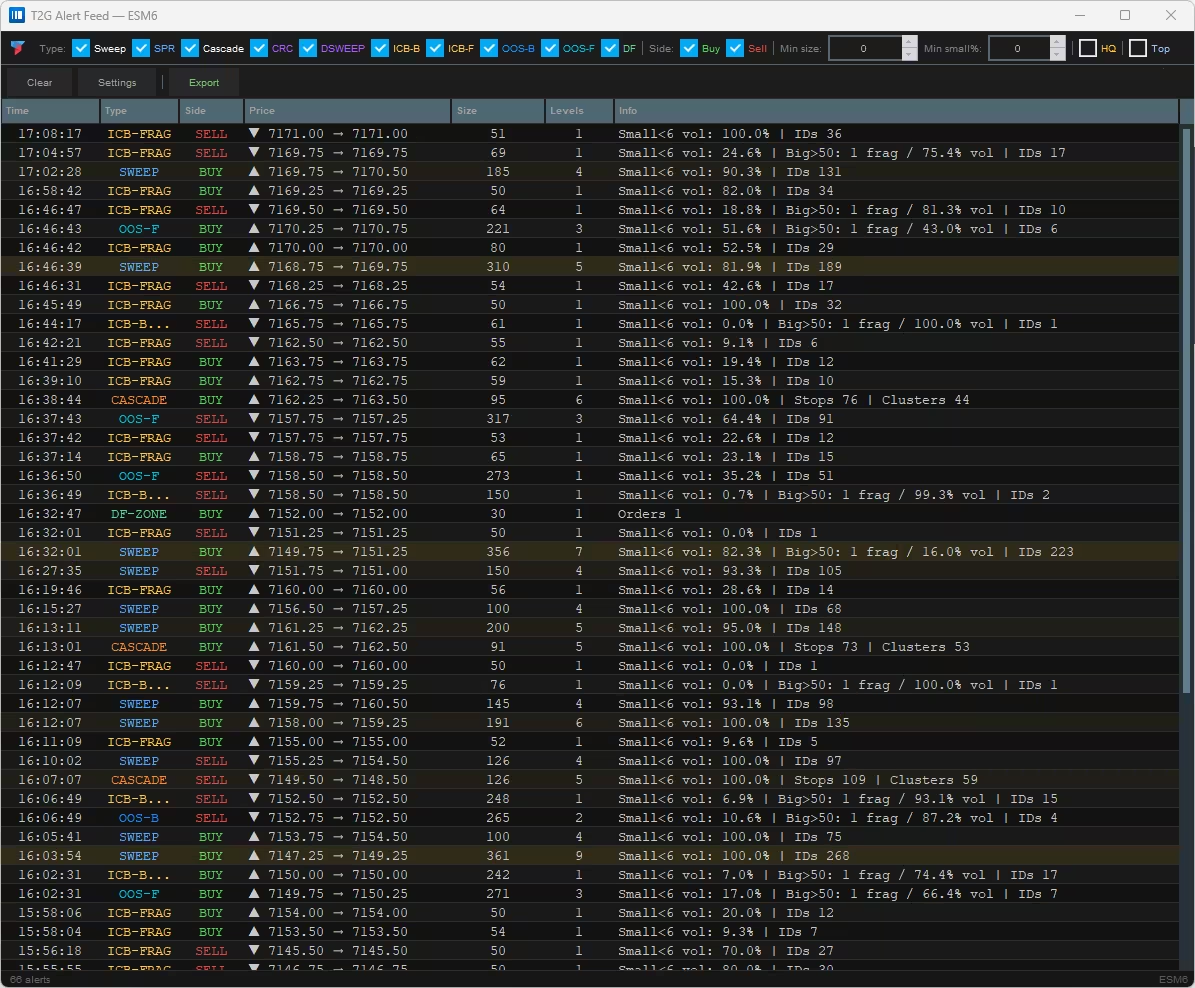
Feature reference
Filter by Alert Type
Show or hide specific alert categories in the feed. These filters affect visible rows only — the add-on continues detecting all alert types regardless.
Buy / Sell Filter
Show only Buy-side alerts, only Sell-side alerts, or both. Use this when you want to focus on one direction — for example, tracking only buy-side absorption during a potential support hold.
Min Size · Min Small% · HQ
Clear · Settings · Export
Feed Column Reference
Alert Detail Data
The Info column contains the full diagnostic data for each alert. Because the content can be long, it may be truncated on screen.
Row Interactions
Each row in the feed is interactive.
Feed Row Count
Shows the number of alert rows currently in the feed. This count reflects all stored rows, not just those visible after filters. Useful for quickly gauging session activity density.
Alert Feed Settings
Controls the display preferences of the Alert Feed window — how the feed is presented, not how alerts are detected.
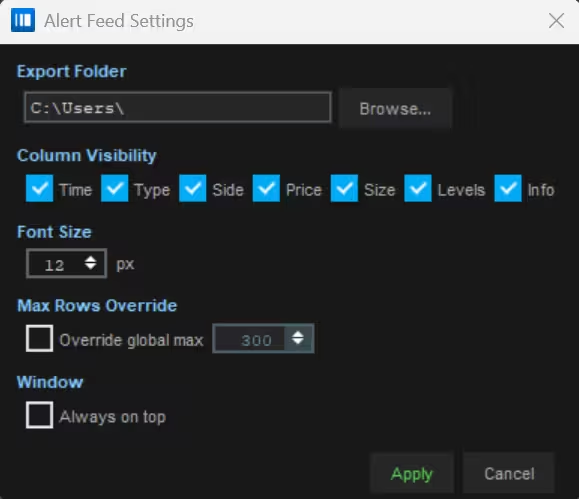
Export Folder
Column Visibility
Hide columns you do not need to make the feed more compact.
Font Size
Max Rows Override
Use this to keep more or fewer rows than the general alert limit.
Window
Apply / Cancel
Quick Settings Toolbar
Fast DOM display controls for centering, market depth, size filtering, settings access, and window management — designed for live market adjustment.
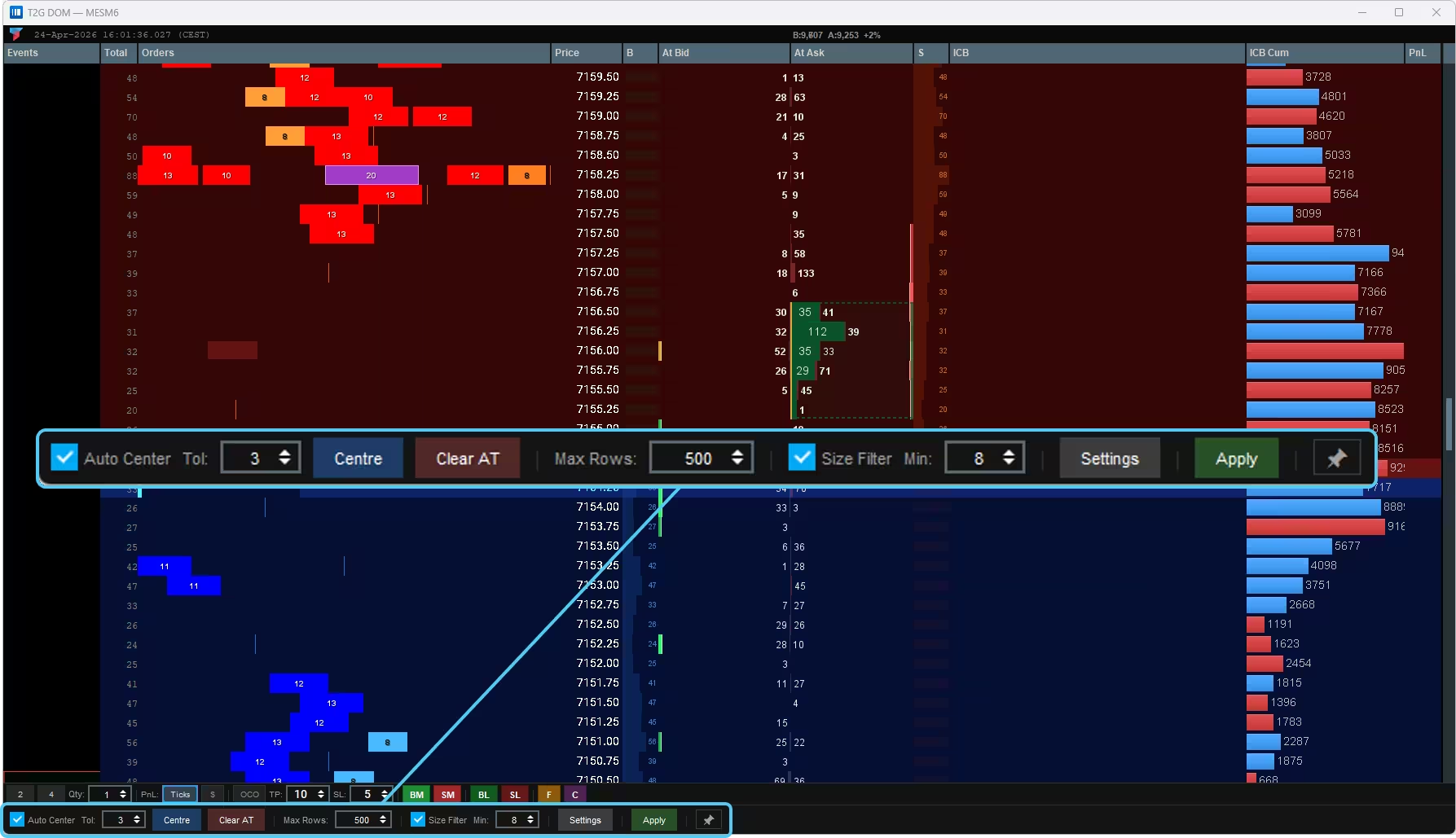
Control reference
Auto-Centering
Automatically keeps the DOM price ladder centered around the current market area. When enabled, the DOM recenters when the spread row moves too far from the anchor. When disabled, the ladder stays locked at its current position even if price moves.
Auto-Center Tolerance
Tolerance in ticks before auto-centering triggers. The DOM recenters only when the spread moves more than this many ticks from the anchor. Higher = less aggressive recentering. Lower = DOM follows price more closely. Only relevant when Auto Center is enabled.
Manual Recentering
Immediately recenters the DOM to the current spread position. Scrolls the ladder back to the active market area instantly. Works even when Auto Center is disabled — useful after manually scrolling to inspect a distant price zone.
Clear At-Market Data
Clears accumulated execution data from the At-Market / Inside Print display — including aggressive print accumulation and related event visualization. Does not affect the live order book, working orders, position, alert history, or settings.
Visible Market Depth
Sets the total number of price rows displayed in the DOM ladder. Higher = more depth visible on screen. Lower = more compact DOM. Range: 10–9999, step 10.
Resting Order Size Filter
When enabled, hides resting orders smaller than the Min threshold from the DOM histogram and excludes them from the displayed level total. Orders are still tracked internally — only the visual display is filtered. Reduces noise and focuses attention on meaningful liquidity.
Minimum Display Size
Minimum resting order size (in lots) required to be shown in the DOM. Orders below this threshold are hidden when Size Filter is enabled. Example: Min = 8 hides all resting orders smaller than 8 lots.
Full Settings Dialog
Opens the complete T2G DOM settings dialog for advanced configuration: display and columns, colors, Inside Print, alert thresholds, sounds, templates, shortcuts, and execution behavior.
Apply Settings
Applies the current toolbar values to the live DOM. Required for: Auto Center, Tol, Max Rows, Size Filter, and Min. The button briefly changes shade to confirm the update was applied.
Always on Top
Toggles Always on Top for the DOM window. When active, the DOM stays above other windows — useful when working with Bookmap, charts, or other trading tools simultaneously. Takes effect immediately, no Apply needed.
Shortcuts
Assign or remap keyboard shortcuts to the main T2G DOM actions. Shortcuts allow faster interaction during live trading — especially for urgent actions such as centering the DOM, clearing At-Market data, cancelling orders, flattening a position, or switching order quantity.
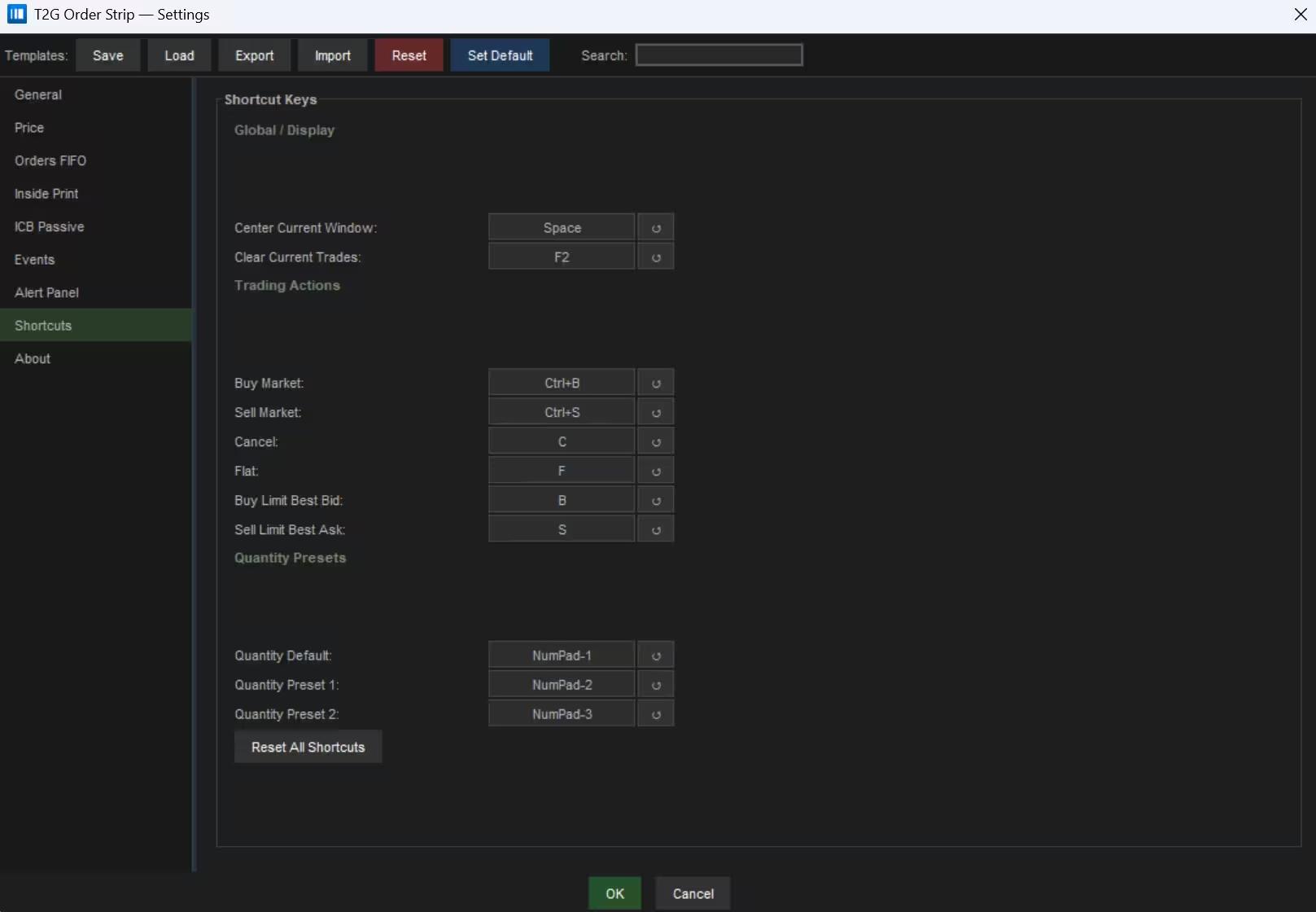
How to assign a shortcut
Global / Display
Display shortcuts work when the T2G DOM window is focused.
| Action | Default | Description |
|---|---|---|
| Center Current Window | Space | Recenters the DOM around the current market area. Same action as the Centre button. |
| Clear Current Trades | F2 | Clears accumulated At-Market / Inside Print execution data. Same action as Clear AT. |
F2 — Use when you want to reset the At-Market visual history and start a fresh observation window.
Trading Actions
| Action | Default | Description |
|---|---|---|
| Buy Market | Ctrl+B | Sends a buy market order using the current Qty. |
| Sell Market | Ctrl+S | Sends a sell market order using the current Qty. |
| Cancel | C | Cancels all working orders. Open position is not closed. Same action as the C toolbar button. |
| Flat | F | Cancels all working orders and sends a market order to close the current position. Same action as the F toolbar button. |
| Buy Limit Best Bid | B | Places a passive buy limit order at the current best bid using the current Qty. |
| Sell Limit Best Ask | S | Places a passive sell limit order at the current best ask using the current Qty. |
Fast execution
Quantity Presets
Instantly change the active order quantity. These shortcuts work whether execution is enabled or not.
| Action | Default | Description |
|---|---|---|
| Quantity Default | NumPad-1 | Sets Qty to 1. |
| Quantity Preset 1 | NumPad-2 | Sets Qty to the first preset quantity button. Default preset value: 2. |
| Quantity Preset 2 | NumPad-3 | Sets Qty to the second preset quantity button. Default preset value: 4. |
Avoiding shortcut conflicts
Single-key shortcuts like B, S, F, and C only fire when the T2G DOM window has focus — they do not interfere with Bookmap shortcuts while the main chart is active.
About
The About panel displays license and version information for the currently installed T2G DOM add-on. Use it to confirm your activation status, verify your plan, and find the correct support contact.
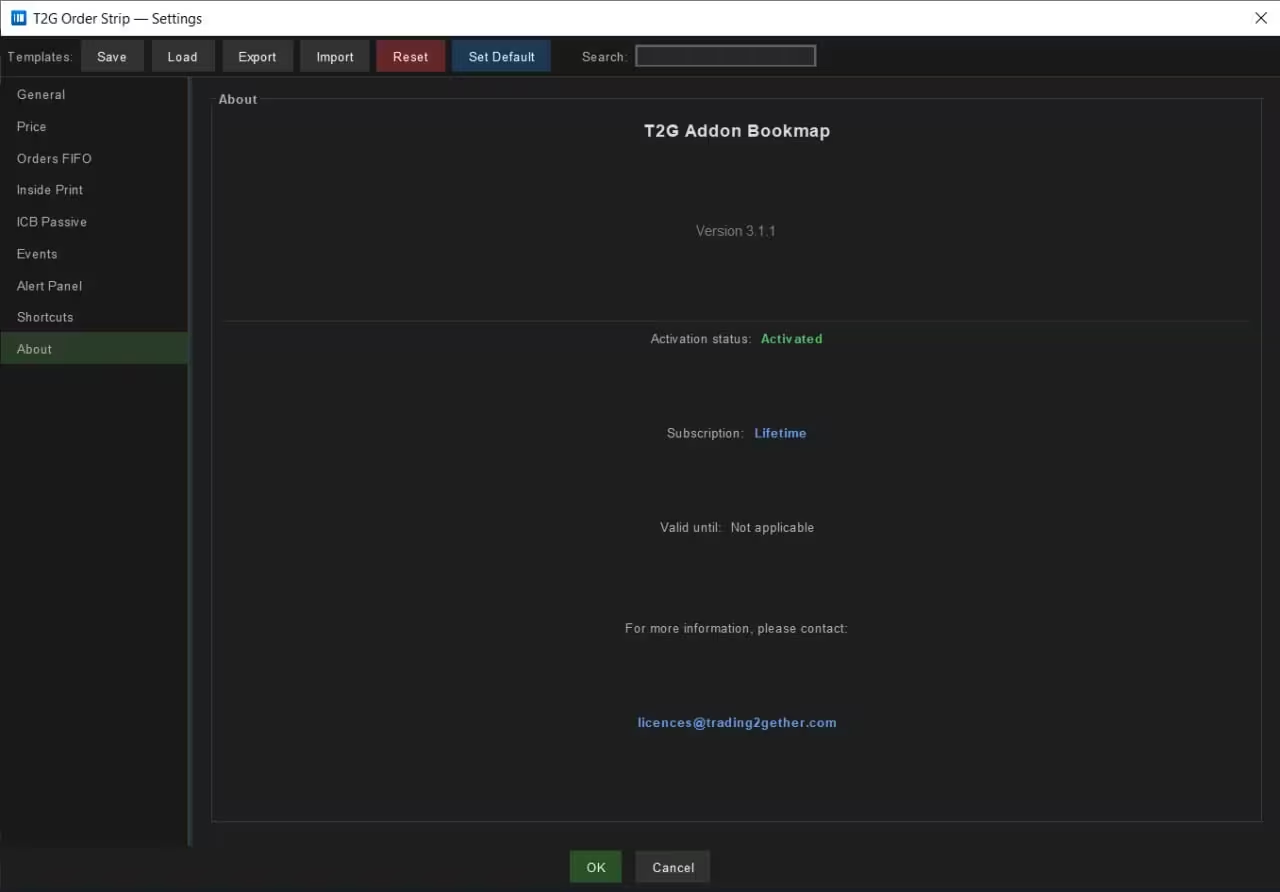
Panel fields
| Item | Description |
|---|---|
| Version | Current version of the T2G DOM add-on installed in Bookmap. Use this when checking for updates, reporting an issue, or contacting support. |
| Activation status | Confirms whether the add-on license is currently active. If the status shows Activated, the add-on is licensed and ready to use. This is the first field to check when activation is not working as expected. |
| Subscription | Type of license attached to your activation — Monthly, Yearly, or Lifetime. Confirms which plan is currently active. |
| Valid until | Expiration date of your license. For subscription plans this shows the current validity date. For lifetime licenses it displays Not applicable. |
| Support email | Official licensing support address: licenses@trading2gether.com. Use this for activation issues, subscription questions, or license access problems. |
Typical use cases
Execution Toolbar
Order entry controls, bracket (OCO) setup, and position management — all accessible from the DOM toolbar or via keyboard shortcuts.
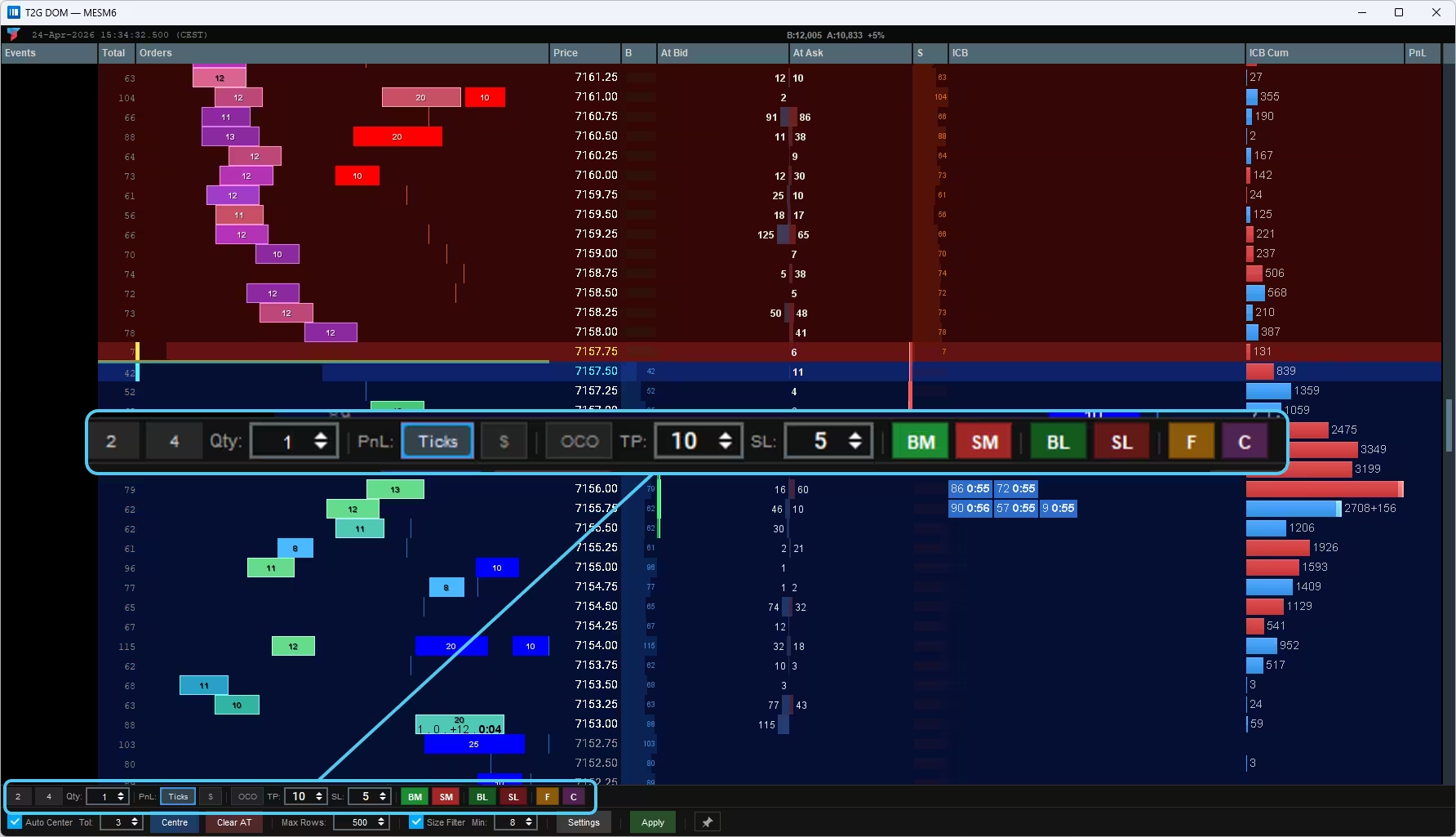
Button reference
Quantity Selector
Sets the number of contracts for the next order. Use the spinner or type directly. Applies to all order buttons (BM, SM, BL, SL).
P&L Display Mode
Toggles the P&L display between Ticks (price distance) and $ (dollar value). The active mode is highlighted in blue.
One Cancels Other
When OCO is active, a bracket (TP + SL) is automatically armed after an entry fills. The bracket uses the TP and SL values set in the toolbar. When one leg fills, the other is cancelled.
Take Profit
Distance in ticks (or $ when in $ mode) for the take profit target. Used when OCO is active — sets how far the profit leg is placed from entry.
Stop Loss
Distance in ticks for the stop loss. Used when OCO is active — sets how far the stop leg is placed from entry.
Buy Market
Sends a buy market order using the current Qty. Executes immediately at the best available ask price. If OCO is active, the bracket is armed after the fill.
Sell Market
Sends a sell market order using the current Qty. Executes immediately at the best available bid price. If OCO is active, the bracket is armed after the fill.
Buy Limit
Places a passive buy limit order at the current best bid. The order rests in the book and waits to be filled by sellers. If OCO is active, the bracket is armed after the fill.
Sell Limit
Places a passive sell limit order at the current best ask. The order rests in the book and waits to be filled by buyers. If OCO is active, the bracket is armed after the fill.
Flatten Position
Emergency exit. Cancels all working orders, then sends a market order to close the open position completely. Use when you need to exit immediately.
Cancel Working Orders
Cancels all working orders for the current instrument. Does not close the open position — use F if you want to flatten too.
Direct Order Placement from the Ladder
You can also interact directly with the DOM ladder without using the toolbar buttons.
Events & Patterns
The Events column groups the main T2G DOM concepts detected from live order-flow and MBO behavior. Each event represents a structured read of market behavior — not a direct buy or sell signal. Use these labels as context to understand execution intent, passive response, urgency, absorption, and structural confirmation.
Detects true fragmented stop cascades across consecutive levels using multiple distinct IDs, small-print structure and a short time window. Not just a volume spike.
View concept →Identifies same-ID aggressive execution across multiple price levels and enriches it with passive-side metrics such as small-order volume and participant footprint.
View concept →Highlights concentrated absorption where a large aggressive participant interacts with block-style passive liquidity, suggesting stronger institutional participation.
View concept →Shows when one aggressive participant is absorbed by fragmented passive activity across many IDs — often revealing retail-style or distributed absorption.
View concept →Tracks active iceberg behavior and builds cumulative memory of hidden liquidity that was tested, refreshed, absorbed or fully consumed.
View concept →Tracks the same order ID as it reprices repeatedly in one direction, revealing when a participant is actively pursuing execution.
View concept →Combines multiple independent T2G readings into one higher-quality contextual signal when several conditions align around the same area.
View concept →Detects out-of-spread urgency built from many small prints and fragmented participants, often linked to crowd pressure, stops or panic behavior.
View concept →Highlights out-of-spread block execution where larger size and urgency suggest stronger institutional-style participation.
View concept →Confirms synchronized sweep behavior across related instruments, such as E-mini and Micro contracts, to isolate higher-conviction events.
View concept →Combines a retail-style stop cascade in one direction with opposite-side institutional absorption, creating a stronger reversal-context read.
View concept →Detects when the same order ID appears in both the aggressive sweep and later passive reuse, linking aggression and absorption behavior.
View concept →Maps defended liquidity areas where larger passive participants keep repositioning near the market instead of disappearing.
View concept →